
Sign in and choose a project
Use Sign In on the welcome screen. If registration is enabled, you can use Create Account and wait for an administrator to assign a Koonj role. Sign out and back in after a role change to refresh your access. Use the project selector in the top bar if you belong to multiple projects. Home gives you an overview and quick access to favorites. Catalog shows the selected project’s files. Activity log shows jobs you started in that project. The available pages and actions depend on your permissions.Browse and inspect files
- Open Catalog and select a mounted location or an S3 bucket under Storage locations.
- Browse the folder tree or use the breadcrumbs. If your permissions allow it, click Scan to refresh that location’s catalog and follow progress in Activity log.
- Open a file or use View metadata to inspect its storage state, attributes, checksum where available, and lineage. Use Edit metadata on a supported selection to update annotations or tags if you have permission.
- Use the star control to add a file or folder to Quick access on Home. Use lineage to see recorded transfers and the folder checksum report when you need CSV output.
Archive to S3
- From a mounted location in Catalog, select eligible files or folders and click Archive to S3.
- Choose the Destination and Storage class. Use Copy to keep the original file on disk. With purge permission, use Purge to replace a verified source file with a symbolic link and free its data blocks.
- Click Submit archive, then open the job in Activity log and check the per-file results.
Recall to mounted storage
- Select an eligible archived file or folder and click Recall to Source.
- If prompted, choose the Archive source. Each recall job uses one archive source.
- Choose the mounted Destination and check the destination path. A recall can replace a file at that path.
- Leave Remove the S3 copy after restoring unchecked to retain the object, or select it to remove the S3 copy after a verified restore. Click Submit recall and check the job result.
Track jobs and notifications
Open a row in Activity log for progress, events, and per-file outcomes. Available controls include Pause, Resume, Stop, and Restart, depending on job state and your permissions. Pause and stop take effect at the next safe checkpoint. Open Storage status to inspect connectivity and capacity for the current project if granted access. In the profile menu, open Settings → Email notifications to change job email preferences, mute categories, or snooze delivery. Job email requires a verified sign-in address.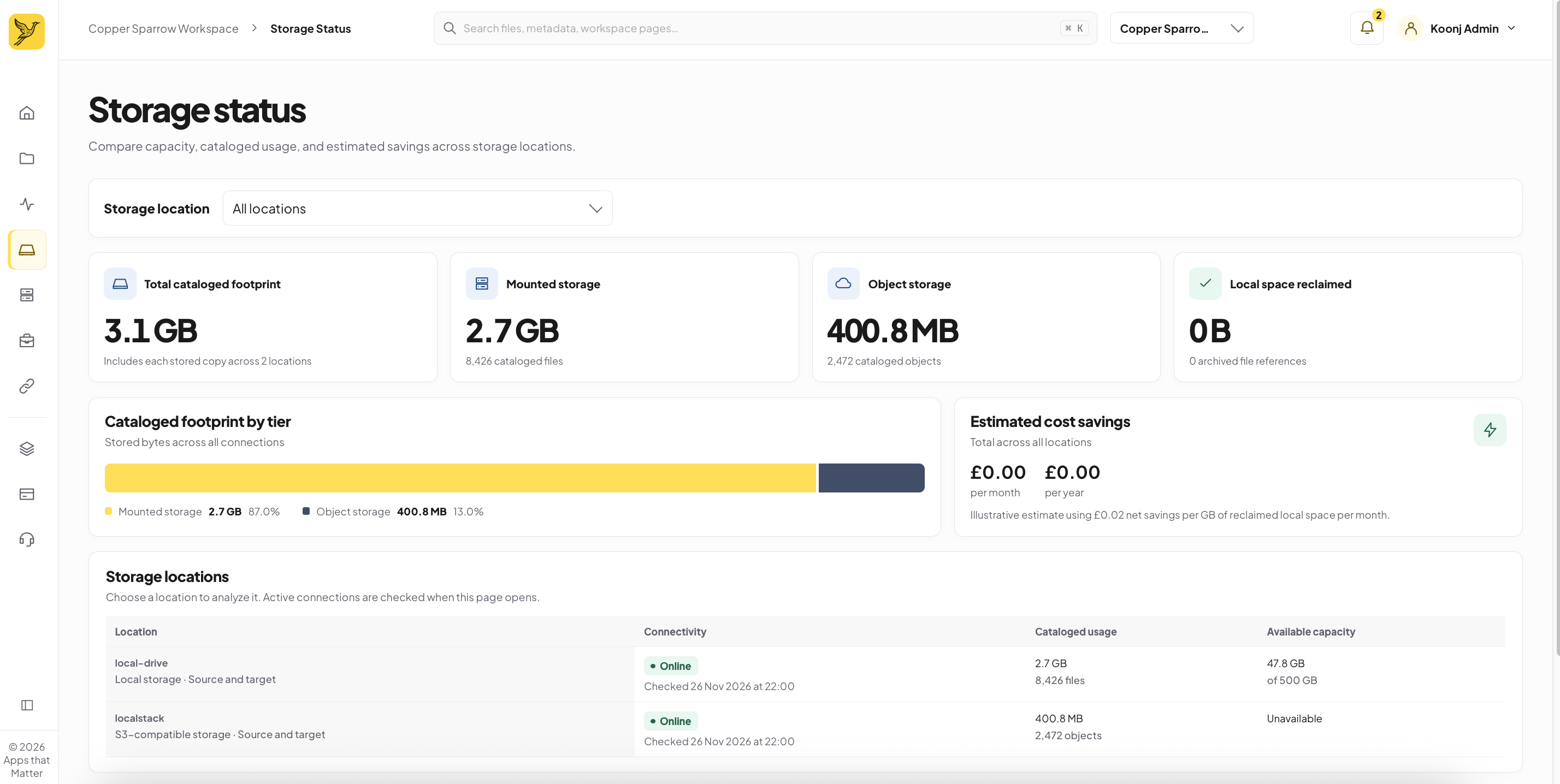
Storage status compares cataloged usage and shows whether each connection is reachable.