
2024-11-05 HTTP transport with Server-Sent Events (SSE).
Generate a project token
- Select the project you want the client to access.
- Open Integration → MCP & AI Assistant → Generate New Token.
- Name the token, set an expiration, and copy it when it appears. Koonj shows the secret once.
- Use Test connection to verify the token and inspect the available tools.
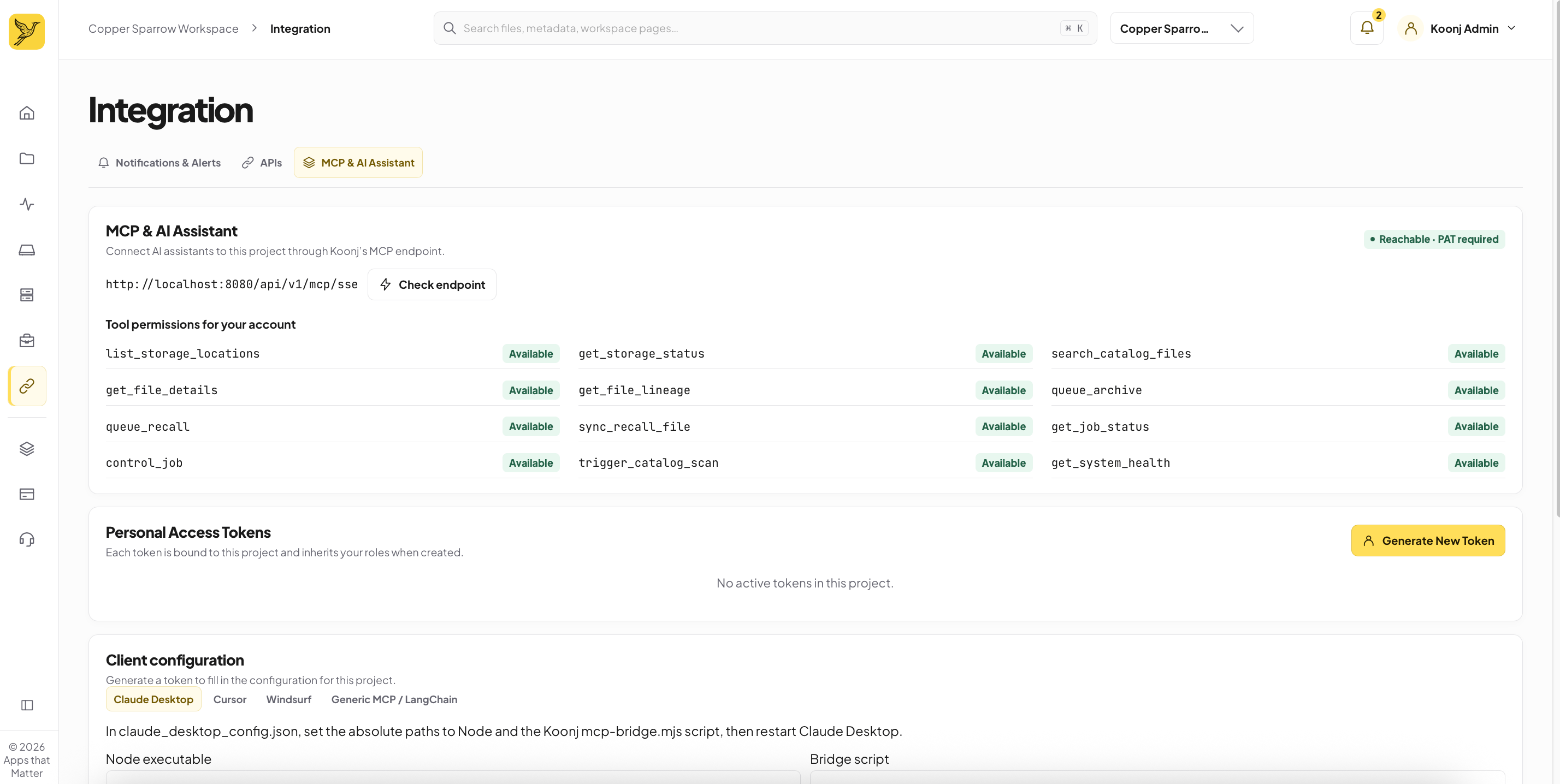
The MCP tab shows endpoint status, tool permissions, and client configuration.
Configure the client
Use the example under Client configuration for Claude Desktop, Cursor, Windsurf, or a custom MCP client. Use the HTTPS origin of your Koonj deployment. The SSE endpoint is/api/v1/mcp/sse. The stream announces the session-specific message endpoint. Send Authorization: Bearer <PAT> with the stream request and message requests.
The project is part of the token. If your client sends X-Koonj-Project, use the same project ID. Keep the token in a private configuration or secret store and revoke it in Personal Access Tokens when you no longer need it. After an identity-provider role change, revoke existing tokens and issue replacements.
Configure a reverse proxy
The packaged Docker proxy includes MCP routes. With a custom proxy, disable buffering, caching, and compression for the SSE route. Route/api/v1/mcp/sse and /api/v1/mcp/message to the same API instance so they share session state. Keep tokens out of proxy and application logs. For clients that pass a token in the SSE URL, redact the query string.